Tutorial
See also the step-by-step example.
[Getting Started][Local Data
Interface Modules][The Java Analysis Studio Environment][Viewing Data][Functions][Fitters][The Default Fitter][Registries][Class Paths][Analyzing Data]
Getting Started
- Create a new job by selecting 'New Job...' under the 'File' menu.
A wizard will appear. On the first page, enter a name for your job and select
whether you want a remote or local job. Click on 'Next' to set up the type of job
you have chosen.
- If you selected a remote job, you must select the data set to open after the wizard has
opened the new job. To open data stored on that server, select 'Open Data Set...'
from the 'Job' menu. In a local job, the data set will open automatically, so the
menu item "Open Data Set...' will be inactive.
- Once you have saved your job, you can open it from the 'Recent Jobs' submenu in the
'File' menu. Also, you can have Java Analysis Studio automatically open your most
recent job. To do so, select 'Open last job at startup' from the 'Options' dialog.
Local Data Interface Modules
When you are running a local job, you must access your data through a local data
interface module (DIM). That Local DIM allows the application to read a data format
because it is designed specifically for that format. In order to use a Local DIM,
you must register it in the Local DIM registry. There are
some default Local DIMs included with the
application, but you can define your own by following the documentation.
The Java Analysis Studio Environment
Java Analysis Studio allows you to customize the application environment in two ways.
- You can select between two window styles, illustrated below. On top is the 'Tabbed
Panes' style; below it is the 'Internal Frames' widow style. The 'Internal Frames'
window style is ideal for viewing multiple pages because it supports cascading and tiling
of windows.


To switch between styles, select 'Window Style' from the 'View' menu.
- You may also switch between Java's built-in pluggable look and feel modes. Shown
below are, in order, the Windows, Motif, and Metal (Java's own) look and feel modes.

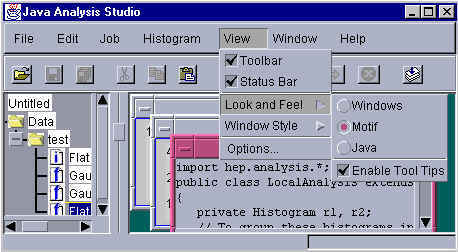
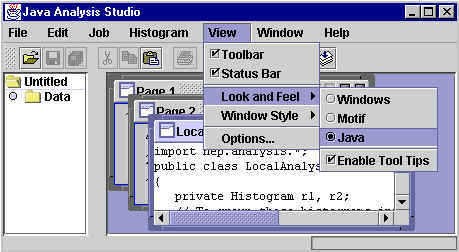
As the above images depict, you can select the look and feel from the 'View' menu.
Viewing Data
- The program opens with a single page entitled 'Page 1'. To create new histogram
pages, select 'Histogram Page' from the 'New' submenu in the 'File' menu. A page can
have multiple histograms; choose the style you want on the 'Histogram Page' submenu.
- To view a histogram, select the plot you want it to appear on by clicking the mouse
inside it. A blue frame indicates the selected plot. To add the histogram to
the selected plot, select the data set in the job tree, as shown below.

Either double click on the data name, or select 'Show Data' from the 'Histogram' menu.
To overlay another data set, select it on the job tree as show in the illustration
above, and select 'Overlay Data' from the 'Histogram' menu.
Functions
Java Analysis Studio comes with a number of default
functions that can be displayed on a plot. Most of these functions are fittable.
To define your own functions, see the documentation
provided. Java Analysis Studio keeps a function registry where it holds all of the
functions that can be added to a plot. The first time you use Java Analysis Studio,
these default functions will be registered. If
you wish to add or remove functions from this list, see the documentation below on changing the function and fitter registries. Your
modifications to the function registry will be saved and loaded next time the application
starts if you have selected the 'Save registries' box in the 'Options'
dialog. By default, this option is selected. To use functions in data
analysis,
- Select the plot you want to add a function to by clicking the mouse on that plot.
A blue frame indicates the selected plot.
- You can add a function to the plot in three ways. The first way is to select the
'Add Function' submenu from the popup menu. You will
see a list of the functions in the function registry. Select one and it will be
added. The second way is to access the same 'Add Function' submenu, which is also
located in the 'Functions' submenu of the 'Histogram' menu. The third way is to open
the 'Properties' dialog from either the popup menu or the 'View' menu. Select the 'Functions' tab,
and click on the 'Add' button.
- Some functions have advanced options. These are options specific to a certain
function, such as a spline function's smoothness or a polynomial function's order.
The 'Advanced Options...' button on the 'Functions' tab of the 'Properties'
dialog is active when one such function is selected. Click it to open a dialog
box that allows you to set special options for the selected function. Another way to
open the advanced options dialog is to select the function from the 'Advanced Options'
submenu of the popup menu. See the documentation on advanced
options for more information on defining a function that allows the user advanced
options.
- There are three ways to fit a curve to data.
- The first way is to select the 'Fit' submenu from the popup
menu. The 'Fit' submenu will only be active if there is at least one fittable
function that is not fit already and one data set on the selected plot. If there are
multiple data sets, you will first be asked to select which one you want the curve to be
fit to. You will then be asked which curve you want to be fit to that data set.
To look at the parameters of the fit after fitting a curve in this way, you will
have to select the 'Functions' tab on the 'Properties' dialog
and select the function you have just fit. The parameters are displayed on a table
there.
- The second way is to access the same 'Fit' submenu from the 'Functions' submenu of the
'Histogram' menu. When a fitter that was executed in these two ways is finished, the
chi squared value for the fit will be displayed in the lower left corner of the
application frame. To look at the parameters of the fit after fitting a curve in
this way, you will have to select the 'Functions' tab on the 'Properties'
dialog and select the function you have just fit. The parameters are displayed
on a table there.
- The third way to fit a curve to data is to select the 'Functions' tab on the 'Properties' dialog, and select the 'Fit' check box. The
check box will only be enabled if a fittable function has been selected. The new fit
parameters visible are on the same pane.
The fitter should stay linked to the data as you have set it and should re-fit the
curve each time the data change. If the function has handles and you move one of
them manually, the fit will be cleared and will no longer update with the data.
Fitters
Java Analysis Studio comes with a least-squares fitter. Like functions, fitters
are stored in a registry and you can add and remove fitters from the registry. Like
for the function registry, the fitter registry will be saved and loaded next time the
application starts if the 'Save registries' box in the 'Options'
dialog is selected, which it is by default. To define your own fitter, see the documentation. The registries
section describes how to add and remove functions from their registries.
The Default Fitter
If you try to fit a function from the 'Fit' menu (as opposed to fitting from the
'Properties' dialog) the program will use the default fitter. To set or view the
default fitter, select the 'Defaults' tab on the 'Options'
dialog and select the fitter there.
The registries are accessible from the 'Options' dialog.
In one of the 'registry' panes, click on the add button (fourth down) to add a
class to the registry, and on the remove button (third down) to remove the selected
class. Only classes that extend jas.hist.Fitter can be added to the fitter
registry. Only classes that extend jas.hist.Basic1DFunction or classes that
implement jas.hist.FunctionFactory can be added to the function registry. Only
classes that implement jas.jds.module.LocalDIM (see the related documentation) can be added to the
Local DIM registry. Be sure that the fitter or function is a class in your class
path. See the next section for adjusting class path.
The function registry is shown in the 'Options' dialog
below.

Class Paths
When Java Analysis studio searches for a class, it looks in your class path.
This is just a set of default directories where it looks for classes. To set or view
your class paths, go to the 'Defaults' tab of the 'Options'
dialog and set them the same way you set the function and fitter registries. The
arrow buttons change the order in which the directories are searched.
Analyzing data
See also a step-by-step example for analyzing data.
Java Analysis Studio allows you to define your own analysis routines. You can
load any Java class that is properly defined to run an analysis on the data. This
version of Java Analysis Studio has a 'New Job Wizard' that will create a skeleton java
source file with comments indicating where you should enter your analysis code. Open
the wizard by selecting 'Program' from the 'New' submenu of the 'File' menu. The
code that the wizard creates will have correct syntax except for the areas you must fill
in (which are indicated by comments), it will be able to run in Java Analysis Studio, and
it will be general enough to cover most analysis tasks. If you want to write your
own code, you must be aware of the following guidelines, which the wizard will normally
take care of for you:
- You must select a name for your class. Create a
file with that name and a '.java' extension. For example, if your analysis routine
were called 'MyAnalysis' then the file would have to be called 'MyAnalysis.java'.
You can create or edit this in any text editor, or in Java Analysis Studio itself.
To create a blank program page, select 'Blank Program Page' from the 'New' submenu of the
'File' menu.
- In that file, define a public class and give it a public constructor with no arguments.
The class name must be the name you selected for the file above. For example,
my class would be called 'MyAnalysis'. Your class must extend hep.analysis.EventAnalyzer.
- Import hep.analysis.*.
- Declare private member variables for each of the histograms you wish to generate and
initialize those in the constructor. If I wanted only one histogram called 'Result'
then my class so far looks like this:
import hep.analysis.*;
public class MyAnalysis extends EventAnalyzer
{
private Histogram result;
public MyAnalysis()
{
result = new Histogram("Result");
}
}
Histograms can be sorted into folders (class hep.analysis.HistogramFolder).
In fact, folders can be stored in other folders.
- Override the following method:
public void processEvent(EventData ed)
In this method, perform calculations on a particular event. For example, if your
result is the product of mass, energy, and pi, your method definition should be:
public void processEvent(EventData ed)
{
result.fill( Math.PI * ed.getDouble("MASS") *
ed.getDouble("ENERGY") );
}
The method processEvent will be called for each event once
you tell the program to begin executing it. Thus, your result histogram will contain
one entry for each event, and will contain values as defined in the processEvent method.
- There are other methods you may wish to take advantage of.
- public void beforeFirstEvent()
If there is anything you want to have done just before the program begins, override this
method and include in it those things you want done before the first event.
Otherwise, do not override it.
- public void afterLastEvent()
Similarly, override this method if you want to do something after the analysis is
complete. Often the sendMessage(String) method is used here.
- public void sendMessage(String message)
This outputs a string in the lower left corner of the application frame.
Now, you can compile the file. You could use Sun's Java Development Kit compiler
at the command prompt. For example, I would type
javac MyAnalysis.java
Alternatively, you can compile it in Java Analysis Studio by clicking on the 'Compile'
button on the toolbar. You still must have
downloaded the Java Development Kit from Sun in order to
get the compiler. Be sure to save the file before compiling. Either way, you
get a class file from your source file. In my example, it would be called
'MyAnalysis.class'.
To load the program, select 'Load...' from the 'Job' menu. Do not type any
extension. In my example, I would just type 'MyAnalysis'.
To run the program, click on the 'Run' button on the toolbar.
You are visitor number  .
.
Page maintained by Jonas Gifford.
Last updated 01/14/04.