
Tutorial

These instructions assume that you have already successfully completed JAS Tutorial Part 1: Creating a New Job.

Part 2: Using the JAS Display

In tutorial part 1 you created a new local job for data analysis and opened the sample data set, 'pawdemo.hbook'. This data set includes many pre-made histograms that were generated from prior JAS data analysis sessions. To view a histogram or scatter plot you need to select a plot page on the main JAS display panel and add the histogram or scatter plot by selecting it from the job tree. The JAS display accommodates multiple plots displayed separately on a single page and, if the field types match it allows multiple overlays on a plot. This tutorial session will show you how to display these histograms and will introduce some of the features of the JAS display.  

To display one of the pre-made histograms:
  • select 'Page 1' on the JAS display. A blue line frame indicates it as the selected page.
  • select 'ID103' form the 'Data\pawdemo.hbook\TEST OF N-TUPLES' folder in the job tree and either:
    • double click on 'histogram1' in the job tree, or
    • select 'Show Data' from the 'Histogram' menu, or
    • open the popup menu from the selected tree item, and select 'Show Data'.

To overlay another pre-made histogram:

  • select a another histogram, such as 'IDE106',  from the 'Data\pawdemo.hbook\TEST OF N-TUPLES' folder in the job tree
  • select 'Overlay Data' from the 'Histogram' menu, or open the popup menu from the selected tree item, and select 'Overlay Data'.

To add another pre-made histogram to Page 1 as a separate plot

  • select a another histogram, such as 'TEST OF HRNDM2',  from the 'Data\pawdemo.hbook' folder in the job tree
  • select 'Show Data in New Plot' from the 'Histogram' menu, or open the popup menu from the selected tree item, and select 'Show Data in New Plot'.

To add a pre-made histogram to a new Page

  • select a another histogram, such as 'IDE104',  from the 'Data\pawdemo.hbook\TEST OF N-TUPLES' folder in the job tree
  • select 'Show Data in New Page' from the 'Histogram' menu, or open the popup menu from the selected tree item, and select 'Overlay Data'. The histogram will be displayed on the new plot page, Page 2. 

After following the above instructions, Page 1 of the JAS display should appear as below.
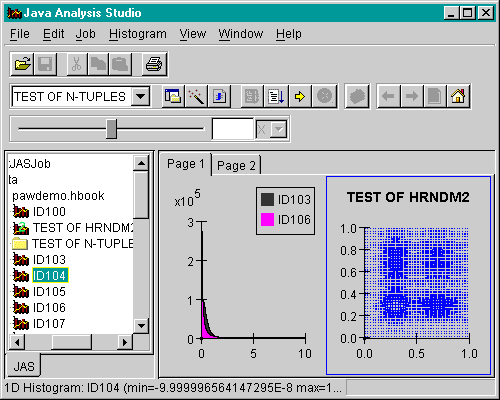
Before proceeding you should remove the histograms from the plot pages so that they will be ready for you to add the new histograms you create in the following tutorials.

To remove the pre-made histograms from the display:
  • Select Page 2 and choose 'Close' from the Window menu, or select 'Close Window' from the page display popup menu.
  • select a plot from Page 1 and select 'Remove Plot' from the page display popup menu until the page is clear..

You are now ready for Jas Tutorial Part 3: Performing Data Analysis.


Top

Return to Tutorial Part 1