 Tutorial Tutorial
These instructions assume that you have already successfully installed JAS.
Welcome to the Java Analysis Studio (JAS) tutorial. This tutorial was designed so that a new user could easily learn some of the key components of JAS and quickly get started creating and processing jobs in JAS. The tutorial is separated into several parts. Each part provides some general information about JAS, and details specific steps that should be completed before proceeding further in the tutorial. All steps that need completing before proceeding are highlighted in the tutorial as shown in the sample below.
| This is a sample of the tutorial format used to highlight steps that need to be completed before proceeding. |
If you are ready to discover the wonderful world of JAS then begin part 1 of the tutorial.
After starting the JAS application you should see an application window that looks something like this:
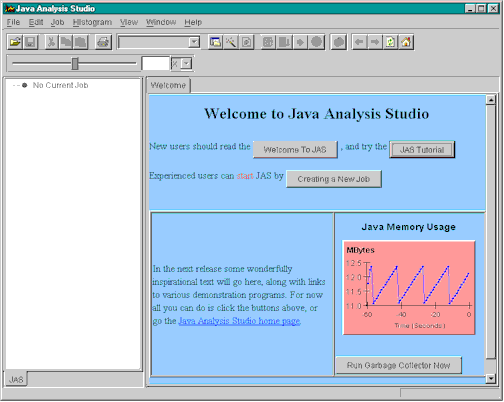
With JAS started you are ready to create a new job. In JAS, a job is the most fundamental construct, which maintains the following information about your analysis process:
|
The first order of business is to create a new job. In order to create a new job you must activate the New Job Wizard by either:
The New Job Wizard, shown below, will appear. |
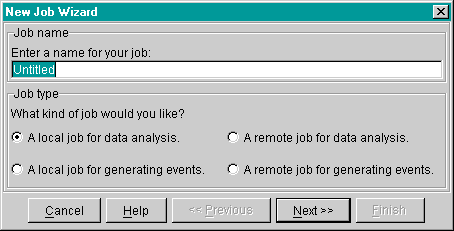
The wizard asks you to specify:
Other options will be discussed later in JAS Tutorial Part 6: Further Explorations into JAS , but for now we will assume a local data analysis job.
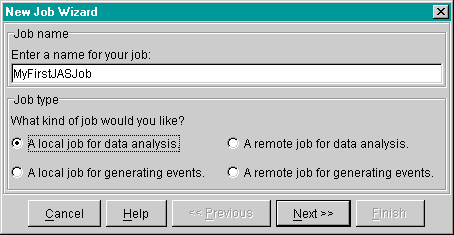
| As shown below, enter the job name as 'MyFirstJASJob', and select 'A local job for data analysis' in the New Job Wizard. Click the Next button. |
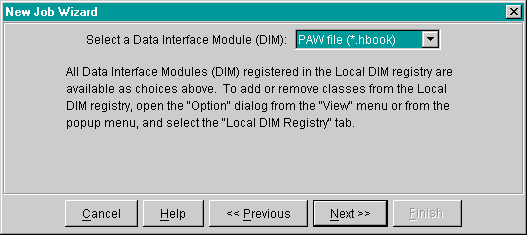
You should now see the setup page shown below, which prompts you to select which data interface module (DIM) you wish to use to open the data set you will analyze. Local DIMs are designed for specific data formats, and return an event source object which is required to access your data. All DIMs registered in the Local DIM registry will be listed.
| Choose the 'PAW' DIM and click 'Next'. |
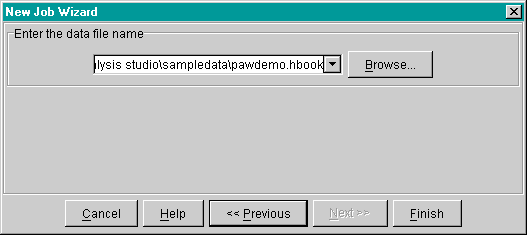
The next page of the New Job Wizard is specific to the type of DIM selected. Shown below is the setup page for the 'PAW' DIM, which requires you enter the path to where your local data set can be found. JAS comes with a test data set that should be used for this tutorial. The sample data set is named 'pawdemo.hbook' and can be found in the 'sampledata' directory, which is below the directory where you installed JAS.
| Enter the file path to the sample data set called 'pawdemo.hbook'. For a standard windows installation this file is located at c:\programfiles\java analysis studio\sampledata\pawdemo.hbook. Otherwise, browse to where you installed JAS and select the 'pawdemo.hbook' file from the sampledata directory. Click 'Finish'. |
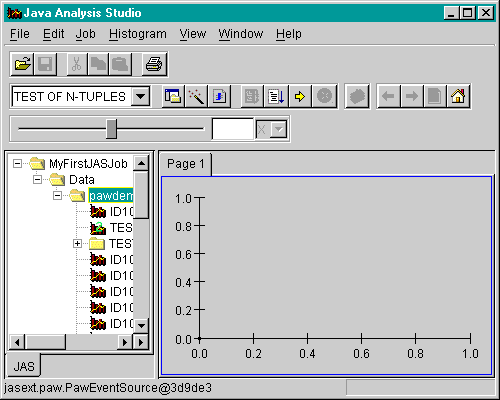
Now that you have finished setting the DIM parameters the job will open and the data set will now appear on the job tree in the main JAS display, as shown below.
You should now be ready for JAS Tutorial Part 2: Using the JAS Display .
