![shoeline2[1].gif (1488 bytes)](../shoeline21.gif)
[Feedback][Tutorial Contents][hep.lcd Home]
These instructions assume you are running on Windows, which is the platform we recommend if you are just getting started.
The steps under Unix are very similar, and if you are smart enough to use Unix commands you can probably figure out what to do. (If you would like to volunteer to write a Unix version of this tutorial please let us know!)
To install Java Analysis Studio click on the download button below, select the platform you are using (e.g. Windows) and click on the "Continue" button . If your browser gives you a choice choose "Run this program from its current location", otherwise save the file to a temporary location (e.g. c:\temp), then use windows explorer to navigate to the directory you saved the file in, and double-click on the downloaded .exe file to run it (its probably called jas.exe, but note that by default windows does not show you the file extensions so it may appear to be called just jas) We recommend you choose all the default options during the install process.
Note! These instructions currently assume you are using JAS 1.0. If you want to try JAS 2.0 instead then follow these instructions, and then skip to the "Checking Your Installation" section at the end of this tutorial.
 |
Don't forget to come back to this page and continue the tutorial once you have finished the install. |
Next you have to download the lcd.jar file that contains the lcd specific code, by
clicking on the button below. If asked choose"Save the file to disk" and when
prompted for a location to save the file, create a new directory called c:\lcd (use the button, then type the name of the new
directory, hit enter) and save the file in that directory (i.e. save the file as c:\lcd\lcd.jar).
button, then type the name of the new
directory, hit enter) and save the file in that directory (i.e. save the file as c:\lcd\lcd.jar).
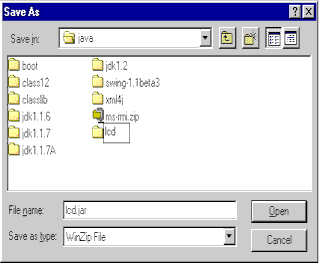
Warning: some older versions of Netscape seem to incorrectly store the saved file as lcd.exe or lcd.jar.exe. Please make sure the file is saved as lcd.jar, if necessary by renaming it after the download. Double Warning: Due the to the windows file browser not showing filetypes by default the file can appear to be called jas.jar even though it is really called jas.jar.exe (thanks Bill). Right click on the file and choose properties to see for sure what the full filename is!
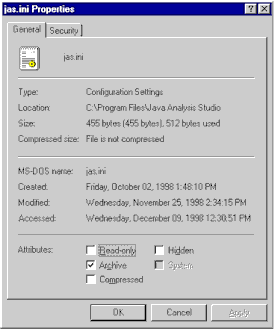
Using the windows explorer navigate to the directory c:\Program Files\Java Analysis Studio\ and locate the file called jas.ini (again it may appear just as jas if you have windows configured not to show file extensions). RIGHT click on the file and choose "Properties...", then make sure the Read-only flag is turned off, and click OK.
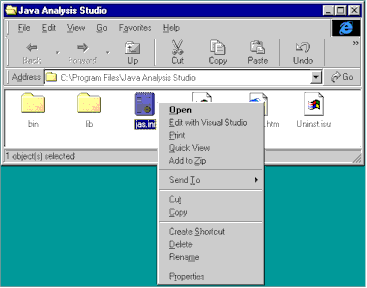
Now double click on the jas.ini file to bring up the file editor, and add the following line to the end of the file:
\c:\lcd\lcd.jar
Don't miss the initial backslash. Save the edited file and exit the editor. Congratulations, your have completed the installation. Now check that your installation works by following the instructions below.
To start Java Analysis Studio double-click on desktop icon ![start.7[1].gif (1894 bytes)](../start.71.gif) .
.
Note: If the desktop icon does not appear it may be because you do not have administrator privilege on the machine you are using. In this case navigate to the c:\Program Files\Java Analysis Studio\bin directory and click on the jasw.exe file.
If all went according to plan the main Java Analysis Studio window should appear. If so you are ready to move on to the next tutorial. If not you will sadly have to proceed to the troubleshooting page.