LCIO is a persistency framework that defines a data model for linear collider detector studies. It provides a C++ and a Java implementation with a common interface. The purpose of this site is to provide information and tools to enable the development and use of the C++ implementation of LCIO on Windows platforms using the Visual C++ .NET compiler.
It is assumed here that the user has obtained and successfully installed LCIO. Please refer to the LCIO homepage for instructions if you have not yet done so.
The current implementation uses zlib compression to minimize the output file size. Please download the latest version from http://www.gzip.org/zlib/ .
This project requires the .NET 2003 version of the Microsoft Visual C++ compiler ( http://msdn.microsoft.com/visualc/ ) . An introduction for new users can be found here.
Project files are provided to build the zlib, sio and lcio static libraries, as well as the simjob, recjob, and dumpevent executables from the examples directory. This first release is intended for developers and only provides a Debug target.
A .bat
file is provided to set up the appropriate local environmental variables and
then invoke the IDE. Users should modify the following environment variables in
startIDE.bat as necessary to reflect their own installations:
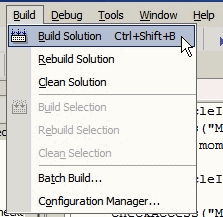
Double-clicking on the .bat file icon should then spawn the IDE. Within Visual Studio, select Build, Build Solution ( or type Ctrl+Shift+B ). The libraries and executable should then be built. We are working to reduce the number of compiler warning messages.
To build the libraries and executables from the command-line or from within a batch file or ant script, the Visual Studio environment also needs to be set up. Executing the setupVC++Net.bat file provided in this distribution should do so for most default installations. The solution can then be built via:
> devenv lcio.sln /build Debug
To build a specific project, use the /project argument, as follows,
> devenv lcio.sln /build Debug /project simjob
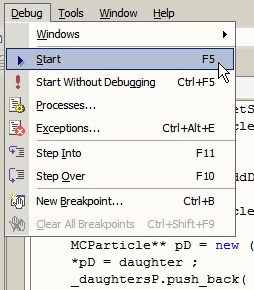
Currently simjob is the Startup Project, so calling Start (F5), or Start Without Debugging (Ctrl+F5) will run %bin_dir%\ simjobMSVC++.exe.
Note that running this executable produces an output file. This file needs to be deleted before rerunning. I have set up the project such that rebuilding will automatically delete the default output file.
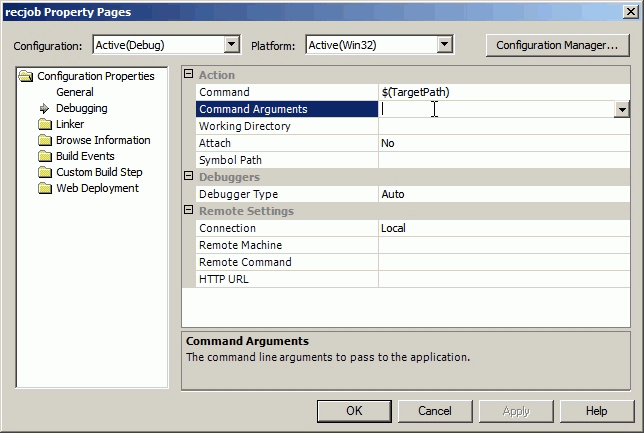
The other executables require input command line arguments. To define these from within the IDE, right-click on the project and select Properties from the popup menu. Select Configuration Properties, Debugging and type in your file name into Command Arguments:
Running from the command-line is fairly straightforward, viz. :
> %bin_dir%\simjobMSVC++
A zip file containing the solution, project and bat files can be downloaded here. The file will expand into a subdirectory named msvc++.
If you have any comments, suggestions, or contributions, please contact me at Norman.Graf@slac.stanford.edu .