 Tutorial Tutorial
These instructions assume that you have already successfully completed parts 1 through 5 of the JAS tutorial.
Tutorial parts 1 through 5 showed you some of the valuable functions of JAS while performing a local job for data analysis. This portion of the tutorial will build on that knowledge by describing the plugin manager user interface, and showing you how to remove, install and update plugins.
The plugin manager is used to manage all of the extra plugins that are available to JAS. JAS comes with several preinstalled plugins which are generally loaded at start up and are fully supported by a JAS plugin web site. The web site maintains information on the plugins that allows them to be easily removed, reinstalled and updated with the plugin manager. You may install your own plugins in JAS and they will be displayed by the plugin manager and subject to removal. However, if you wish to install or update a plugin with the manager the plugin must be supported by JAS. To get JAS to fully support a plugin of your choice please contact the JAS developers.
| The plugin manager, as shown below, can be generated by selecting 'Plugin Manager...' from the 'Help' menu. |
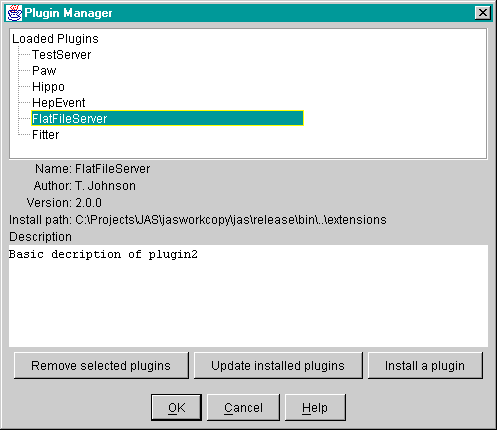
The top panel of the plugin manager lists all of the plugins that are currently loaded in JAS. When a plugin is selected form the list, information specific to the plugin is displayed in the text fields and block below. All of the plugins listed in the image above come preinstalled in JAS and are fully supported.
The plugin manager allows you to remove plugins that are currently loaded in JAS. When a plugin is removed its associated files are deleted from the directory shown in the 'Install path' field. To remove a single, or group of plugins simply select the plugins from the loaded list and click 'Remove selected plugins'.
| For this tutorial try removing the 'FlatFileServer', you will reinstall this plugin later in this tutorial. Select "FlatFileServer' from the loaded list, and click the 'Remove selected plugins' button. The files associated with this plugin will be deleted and the message shown below will be displayed. |
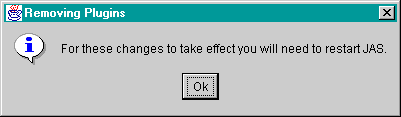
| To fully remove a plugin from JAS you will need to restart the application so that JAS can go through its' plugin loading procedure again. However, for the tutorial it is not necessary to restart the application at this time because we will be installing the removed plugin again in the next step. |
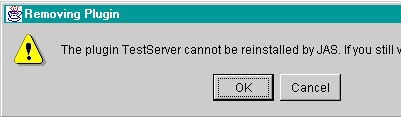
It should be noted that if you try to remove a plugin that is not supported by JAS then the following message will appear, which notifies you that JAS will not be able to reinstall the plugin. If you wish to reinstall the plugin you will have to do so manually.
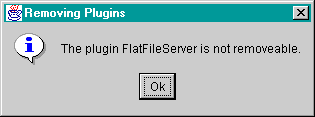
It is also important to note that all of the plugins in the loaded list may not be removable. Some plugins may be set such that the plugin manager is not allowed to remove them as it may affect the operation of JAS. If you try to remove them a message like the following will appear.
The plugin manager allows you to easily install JAS supported plugins. JAS maintains a web site which contains information on all of the JAS supported plugins. The information include the location of the plugins files so that they can be downloaded directly into JAS.
| By pressing the 'Install plugins' button on the plugin manager the Install Plugins user interface, shown below, will be displayed. |
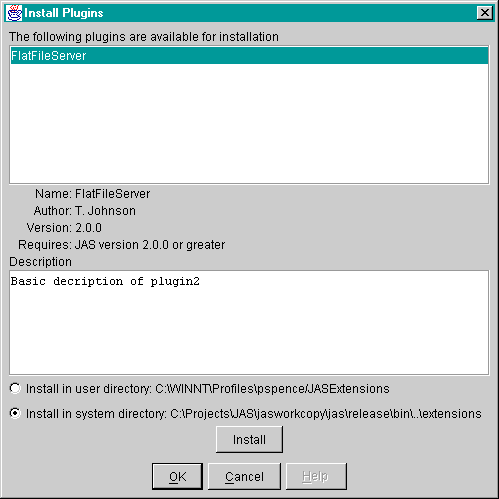
If a plugin is not loaded but is a JAS supported plugin then it will be displayed in the Install Plugins user interface list. The installer provides two options for where the downloaded files will be saved. When JAS starts it searches in these directories for plugins to load. You may chose either option for the install path.
| If you removed the 'FlatFileServer' plugin in the previous step of the tutorial then it will be listed as an installable plugin, as shown above. You should now install the plugin by selecting it from the list pressing the 'Install' button. The download window shown below will be displayed and the associated plugin files will be downloaded and copied into the chosen install directory. You may stop a download by pressing the 'Stop'. |
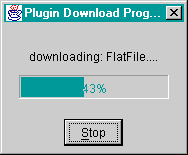
| Once the download is complete you will be again notified to restart JAS, however, you may wait until you have completed all of Tutorial Part 13 before restarting. |
The plugin manager allows you to easily update JAS supported plugins to the newest versions. The JAS plugin web site maintains the latest version number codes for all of the supported plugins so that version comparisons can be made, and the user notified if their plugin is out of date.
| By pressing the 'Update plugins' button on the plugin manager the Update Plugins user interface, shown below, will be displayed. |
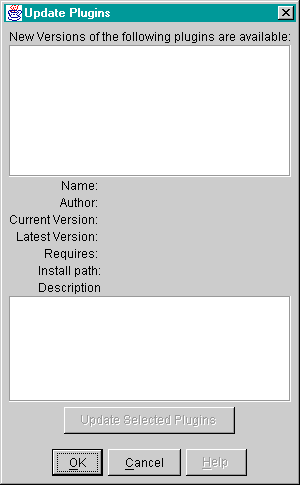
Any outdated plugins that are loaded in your JAS application will be listed, along with information regarding the plugin. If you have just recently installed JAS then no updates may be available and the list of outdated plugins will be empty.
| If any plugins updates are available you can update them simply selecting them from the list and clicking the 'Update' button. A download window similar to the one shown above for installing plugins will be displayed as the updated plugin files are downloaded to the current install path of plugin. You will again be notified to restart JAS to load the new plugins. |
| You have now completed part 13 of the JAS tutorial and should now retstart JAS. |